Introduction
Video conferencing software allows individuals to connect with each other via video calls with screen sharing. Most teams will have a few tools already but we want to know which is your go-to tool for internal meetings, client calls and recordings.
In this guide we will take a look at what features you should look for, differences between standalone tools vs integrated ones, features to pay for and security considerations.
What Video Conferencing Software Does
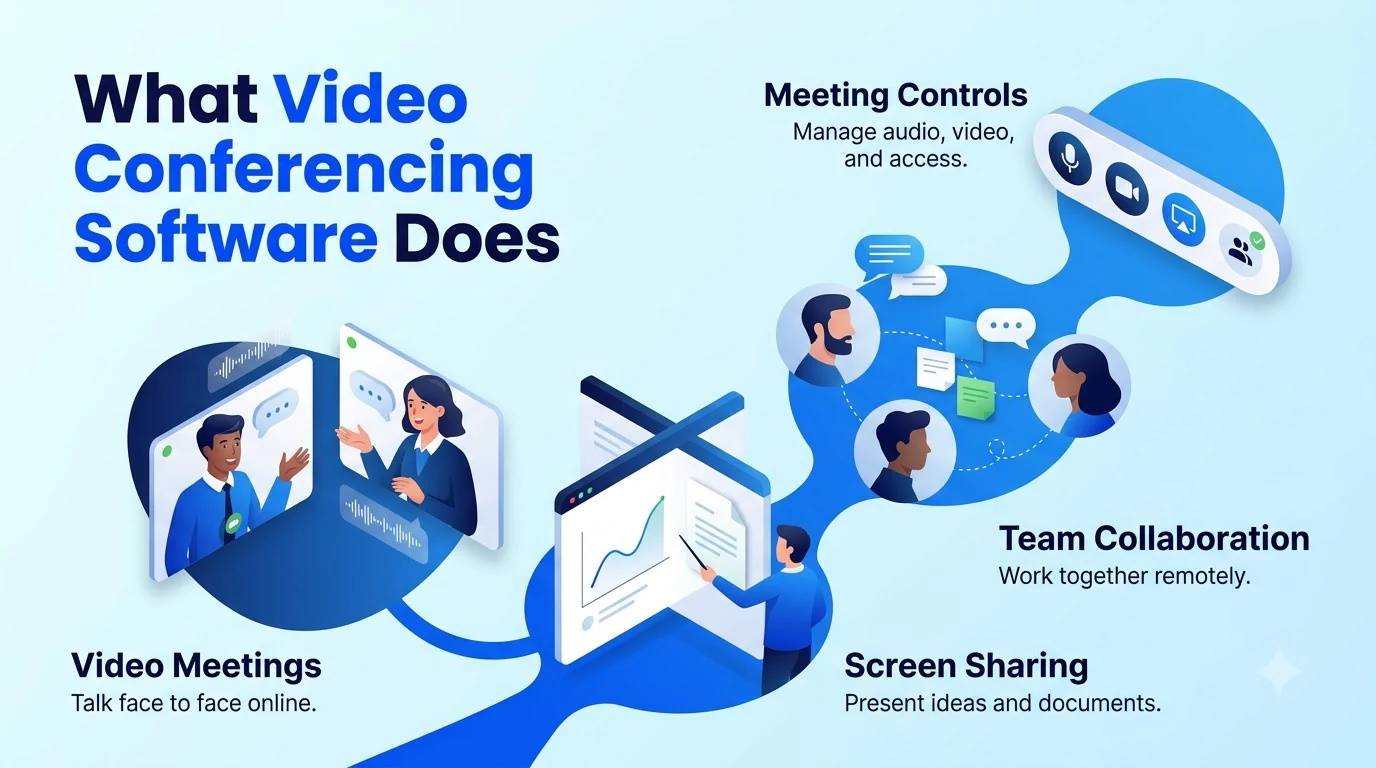
Video conferencing software allows those involved to communicate with each other using audio and video, with screen sharing, chat, recording and scheduling features. This can be used for 1-1 meetings, team check ins or larger ones with external guests.
Over recent years this has evolved. Many tools now offer real-time transcription, summarization and action items.
It is essentially a two-part tool. One for real time video/audio/screen sharing, the second for inviting, recording, noting and follow up. If the real-time element is not great your team will be frustrated during the meeting. If it is not great with the follow-up then your meeting will not be productive a few days down the line.
The software is usually not the expensive part, but the time spent after to note, chase owners etc.
Standalone Tools vs Built-In Meetings
There are two main options when choosing your video conferencing software. Depending on how much you want to integrate your communications.
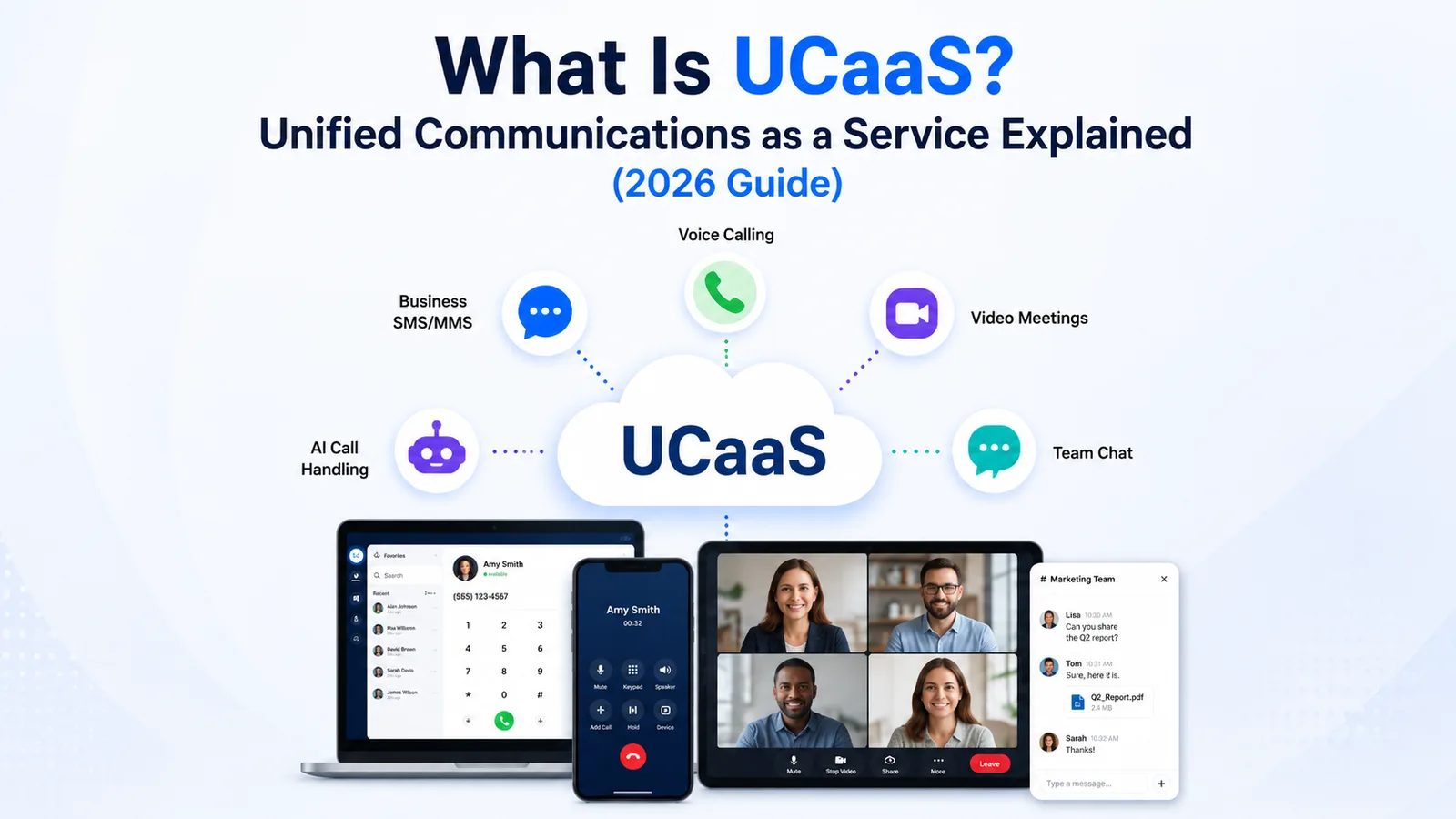
If your meetings are the only thing you need to solve then a standalone tool would be appropriate. However, if you use a phone system and messaging app within your team then an integrated tool like Twiching's video meetings will save you duplicate users and recordings. Take a look at our guide to UCaaS features to see how video fits into your wider solution.
Further reading: Twiching's video meetings
Further reading: our guide to UCaaS features
Be honest about how many tools you already pay for. If it is more than two then an integrated tool is worth a look.
Features That Matter in Video Conferencing Software
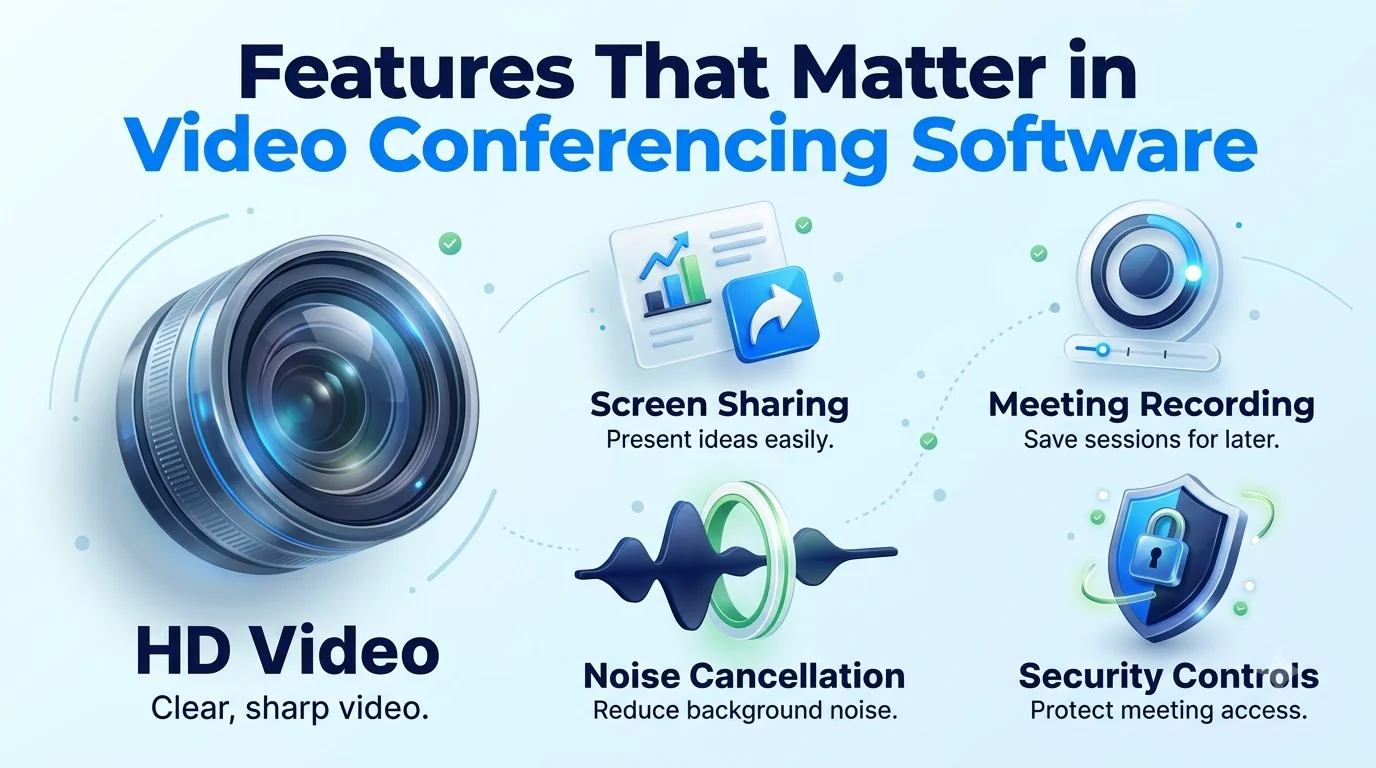
All video conferencing features will look similar. Instead, look for:
- How many participants can attend — Check the limit on your plan and what will happen if you go beyond this.
- Invite external guests — Having a browser based invite without any installation will save you the most issues.
- Live transcription — Allows you to understand what people are saying in noisy environments. Automatically summarized so whoever was taking notes doesn't have to.
- Action items — Only useful if they identify owners and deadlines within your tools.
- Recording & Retention — Look for custom retention. Find out where the recordings are stored.
- Calendar integration — With add-ins you will make it easier for people to adopt.
- Phone dial in — Allows those on poor connections to join.
Consider what your meetings require. If your team are using mostly internal check ins then you will have different requirements compared to a sales team with prospective clients.
Match the Software to Your Meeting Types
Not all meetings will require the same things from your video conferencing software. Group your meetings into a few categories. This will make long lists much easier to read.
- Internal stand-up — what matters most: Fast join, steady audio, a calendar link; what to test: Does it start in under a minute on an ordinary laptop?
- Client or sales call — what matters most: Guest access, screen sharing, a clean look; what to test: Can a first-time guest join from a browser with no help?
- Large session or webinar — what matters most: Participant capacity, host controls, moderation; what to test: What happens when the room hits the limit?
- Recorded training — what matters most: Recording quality, retention, easy sharing; what to test: Can a new hire find and play it six months from now?
Most teams do all of the above. Start with the one that causes the most issues. If you have a tool that handles your most challenging meeting then it will likely handle the rest.
Security and Compliance Questions to Ask
As many video meetings will involve sensitive information (pricing discussions, patient information etc) you should ask the following questions when speaking to them for the first time.
Are your recordings encrypted? Who has the keys? How can external guests join? Can the host lock the meeting? If you are in a regulated industry ask what frameworks they support and ask for the documentation (audit report under NDA).
Do not leave this until the contract stage. By then you will have made up your mind.
To ensure you have a neutral checklist to pass to your IT team the Cybersecurity and Infrastructure Security Agency have guidance on how to secure your video conferencing. This was published in 2020 so it is a good baseline to start with. Confirm the details with each vendor.
Further reading: guidance on how to secure your video conferencing
How to Choose Video Conferencing Software
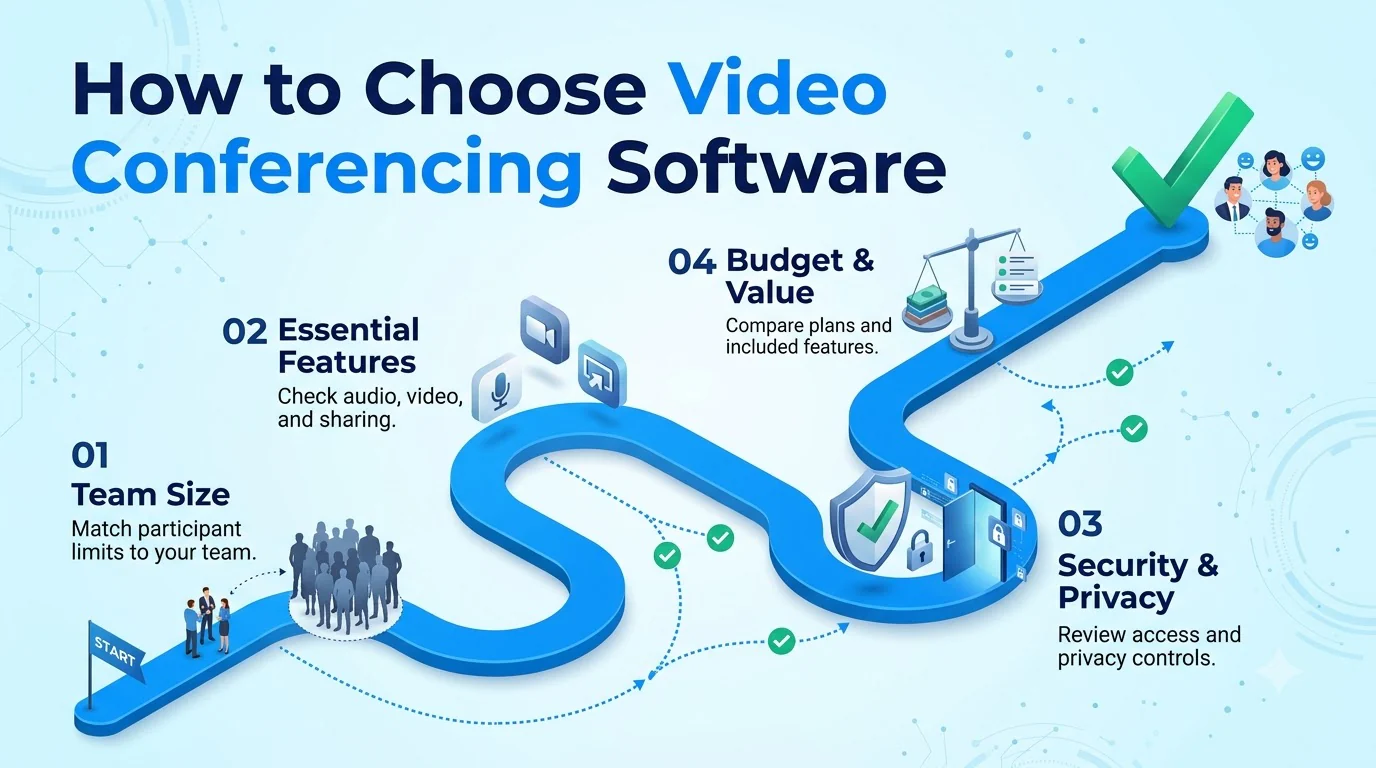
A structured short trial will give you more than just comparing features.
- What types of meetings do you have? Internal meetings, client meetings, larger meetings or training recordings all have different requirements.
- Who are you inviting externally? This is where you will see the most issues.
- How are you handling recordings? Know what you need to record, how long for and who can view.
- What is your wider stack? If you have calendar, CRM and chat integration then you will actually follow up.
- Do a real pilot — Use it for real meetings with mix of staff and external guests. Try it for a week or two.
- Take some notes — At the end of the first week ask each individual one question. Was there anything that made you hesitant to use it? This will give you short honest answers. Not a scoring sheet.
- Who will be the admin? Someone needs to own settings such as recording, guest access and retention. If not, nobody will.
Price should be the last thing you consider. If people are not using the tool it will cost you more in lost time than a slightly more expensive tool.
Mistakes to Avoid When You Roll It Out
Most implementations will fail in a few areas.
- Demo purchase — Ensure you test on the networks and devices your team use.
- Ignoring external guests — If external guests struggle to join they will blame you.
- Ignoring recordings — Consent will depend on your location. Agree what will be recorded, who will be informed and how long it will be stored. Confirm with your legal team.
- Adding another tool — Adding a 4th meeting tool means you have 4 places to search for a recording. Turn off the old ones.
- No walkthrough — Taking 15 minutes to show how to share, mute and record will save hours of confusion.
- Leaving it to the end user — Not everyone will find the settings on their own. Set defaults for recording and guest access before you roll out.
Running Better Meetings Once You Have Chosen
Once you have chosen a tool you can make the most of your meetings with a few simple habits.
Include an agenda in your invite so the summary has a structure. For larger calls ask people to state their name before they speak. This will make the transcript easier to read. Finally, read out the action items at the end stating the owner and date. This will make sure everyone on the call and any summary tool can see them clearly.
Share the summary the same day. People are more likely to read it if they can relate. Most won't read it if it is a week later.
Where Twiching Meet Fits
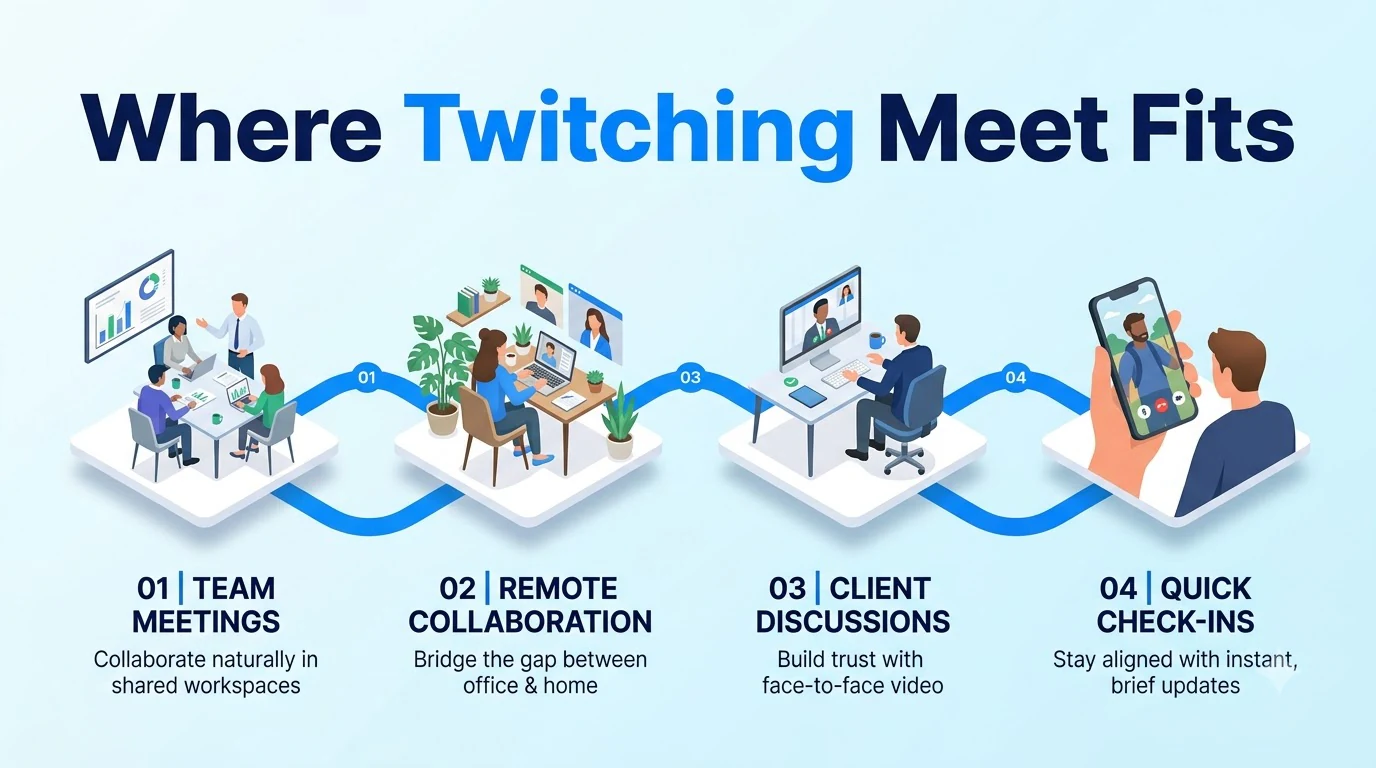
Twiching's video meetings are within the same account as calling and messaging. They allow up to 200 participants in HD, external guests can easily join with no installation required. They offer live transcription, AI summary and action items.
They also offer cloud recordings with custom retention. Recordings are stored in your tenant. They can be scheduled using Google Calendar and Outlook add-in. They also offer phone dial in. Media streams are end to end encrypted. They have a SOC 2 audit available under NDA. They also have HIPAA aligned healthcare plans with a signed BAA.
If you are considering your options they offer a 14-day trial including video conferencing.
Conclusion
Choose video conferencing software your team will use without thinking and your guests can easily join, and consider how many tools you are replacing with standalone vs integrated. Categorize the features into what will change your meetings and ask the security questions early.
Choose a tool to run a real pilot with, because this will show you what the demo can't. Choose the one that gives you the best record, as most time will be spent following up.